
Webphone — business softphone
A powerful yet user-friendly app for calls and SMS, designed for business users and tightly integrated with our hosted PBX.
Place outgoing calls conveniently
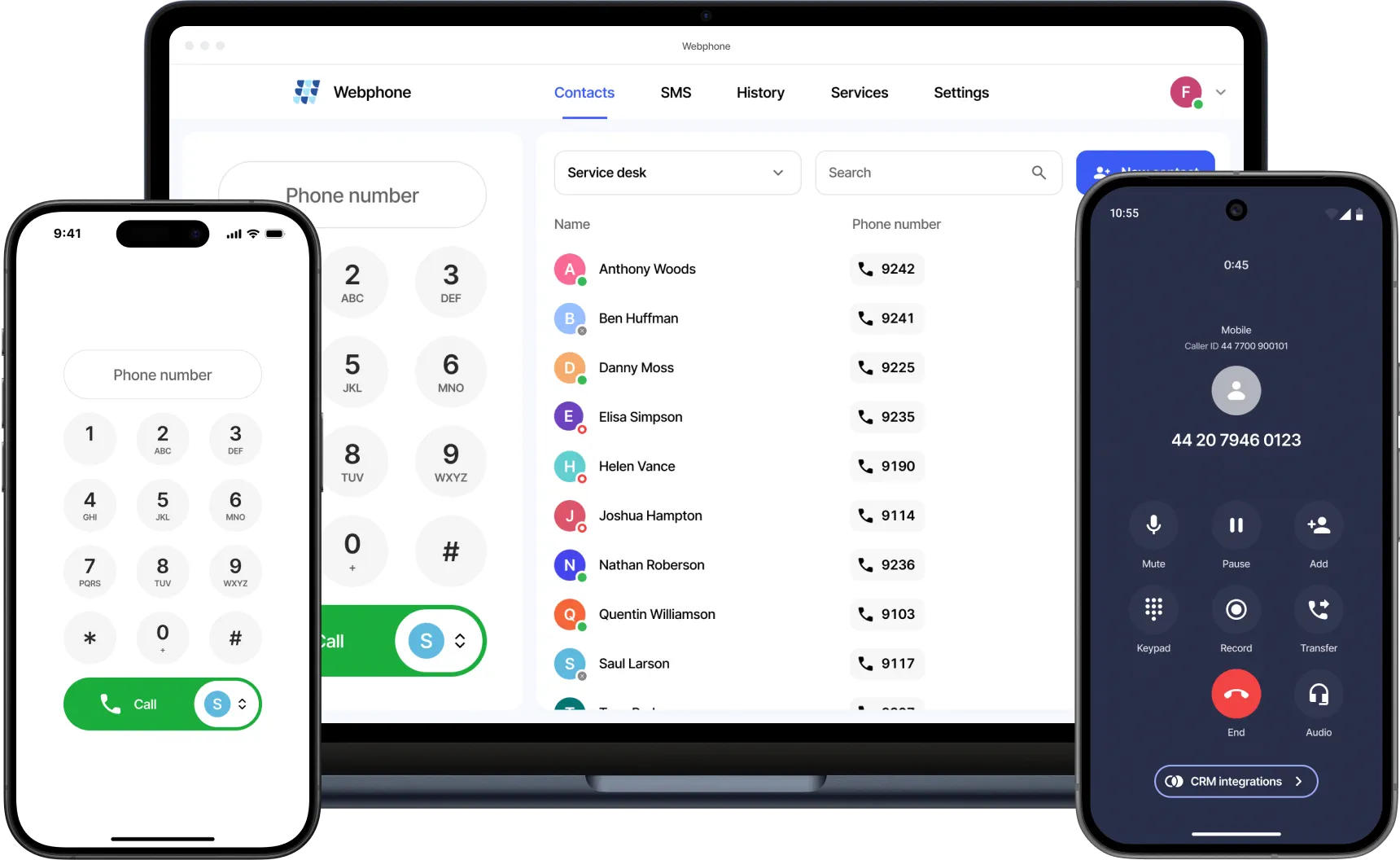
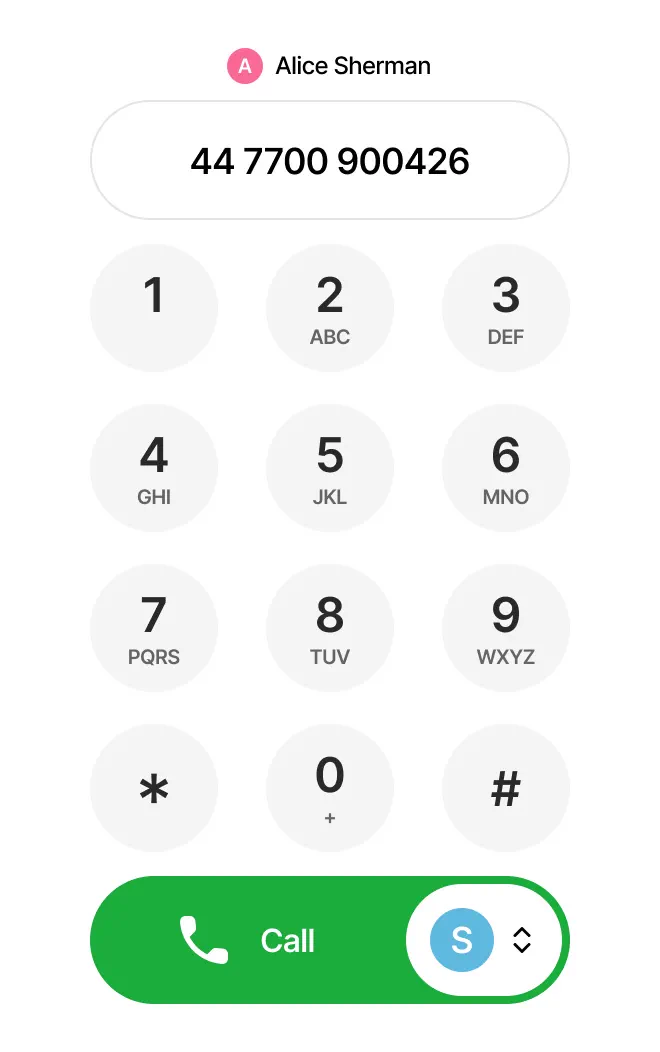
- Change the caller ID before making a call, or select the option to be prompted each time before placing a new call.
- If the number entry field is empty, press the call button and the last number from the history will be retrieved.
- Dial numbers using the touch screen or physical keypad without having to click on the number entry field first with the mouse.
- The app can be designated as the system's default for placing calls. With this feature, you no longer have to manually copy and paste numbers. Simply clicking a tel: or callto: link will automatically launch the app with the number ready to dial.
Manage calls in a new way
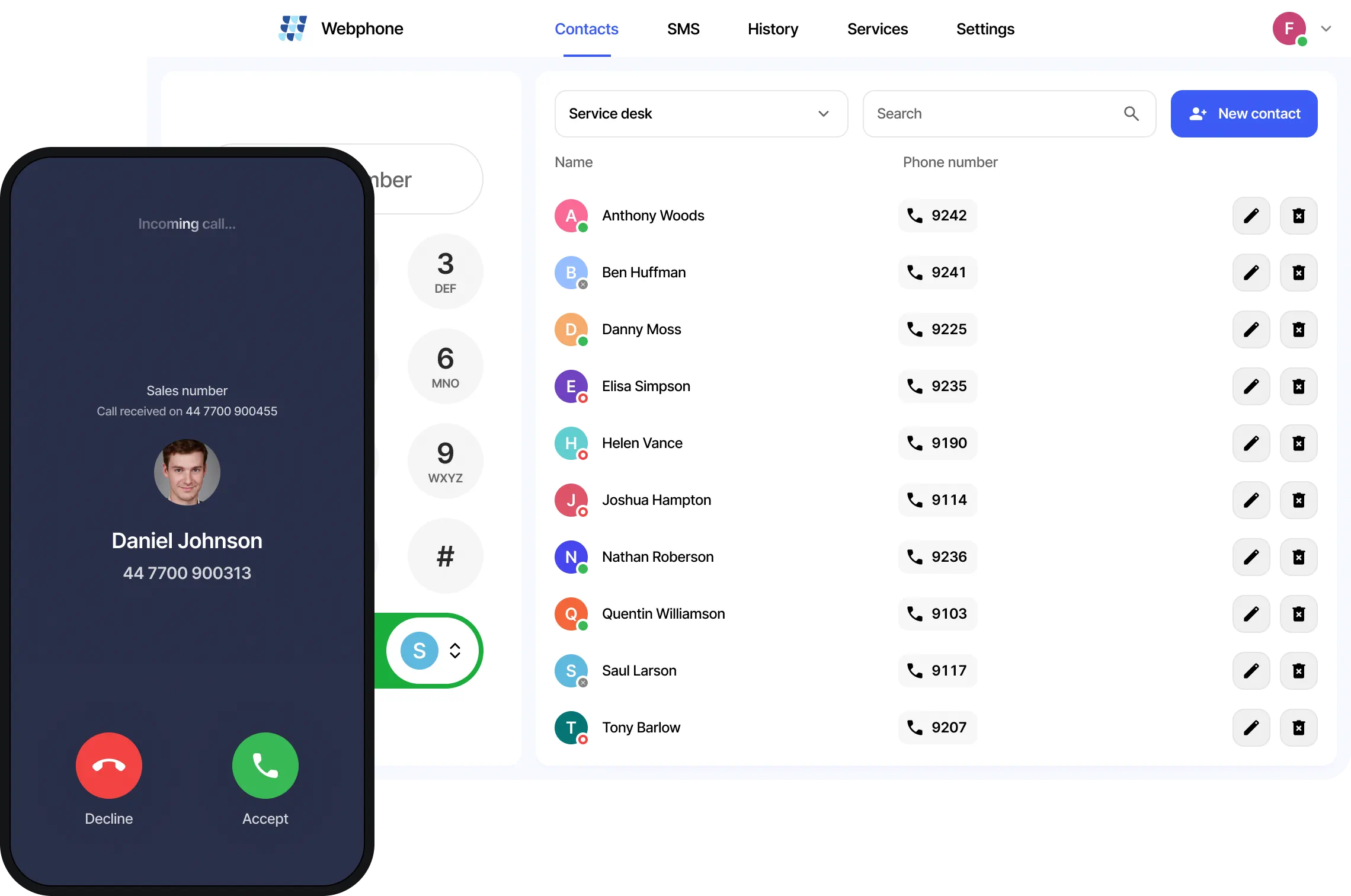
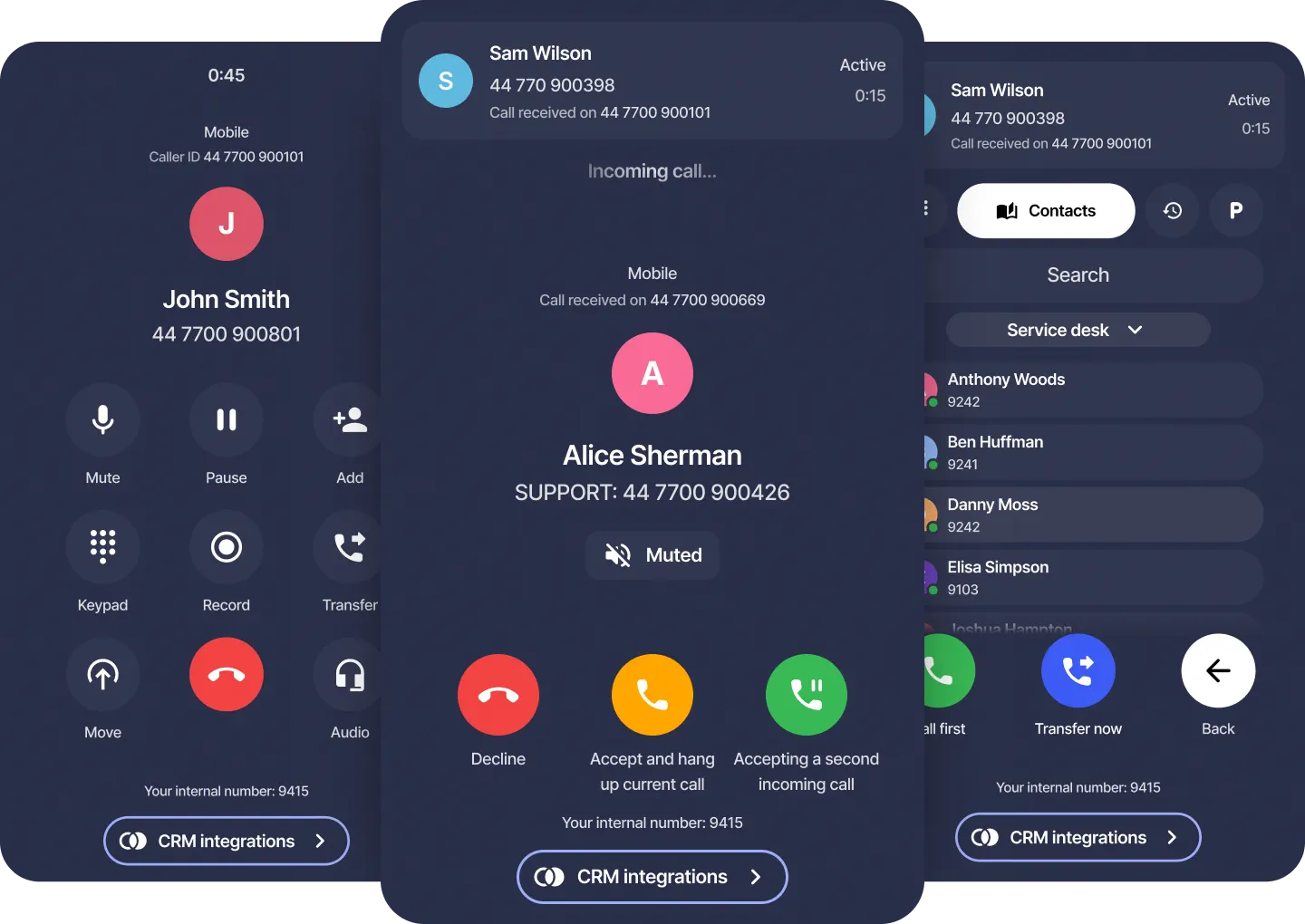
- When a new call comes in, you can see which inbound number was dialed, along with its assigned name. The PBX 'caller ID prefix' will also be shown if this feature is used in the call flow.
- Calls can be transferred immediately (blind transfer) or after first calling the number you are transferring to (attended transfer). You can enter the transfer number manually, select a contact or a number from your call history, or send the call to call parking.
- You can easily switch between active calls or set up a conference call. You also have the option to end the call for everyone or leave and let the other parties continue talking to each other.
- If you have multiple devices, you can move an active call between them. The call will continue seamlessly for the other party.
- Manage the call recording status of each active call separately.
Information from CRM systems and Zapier
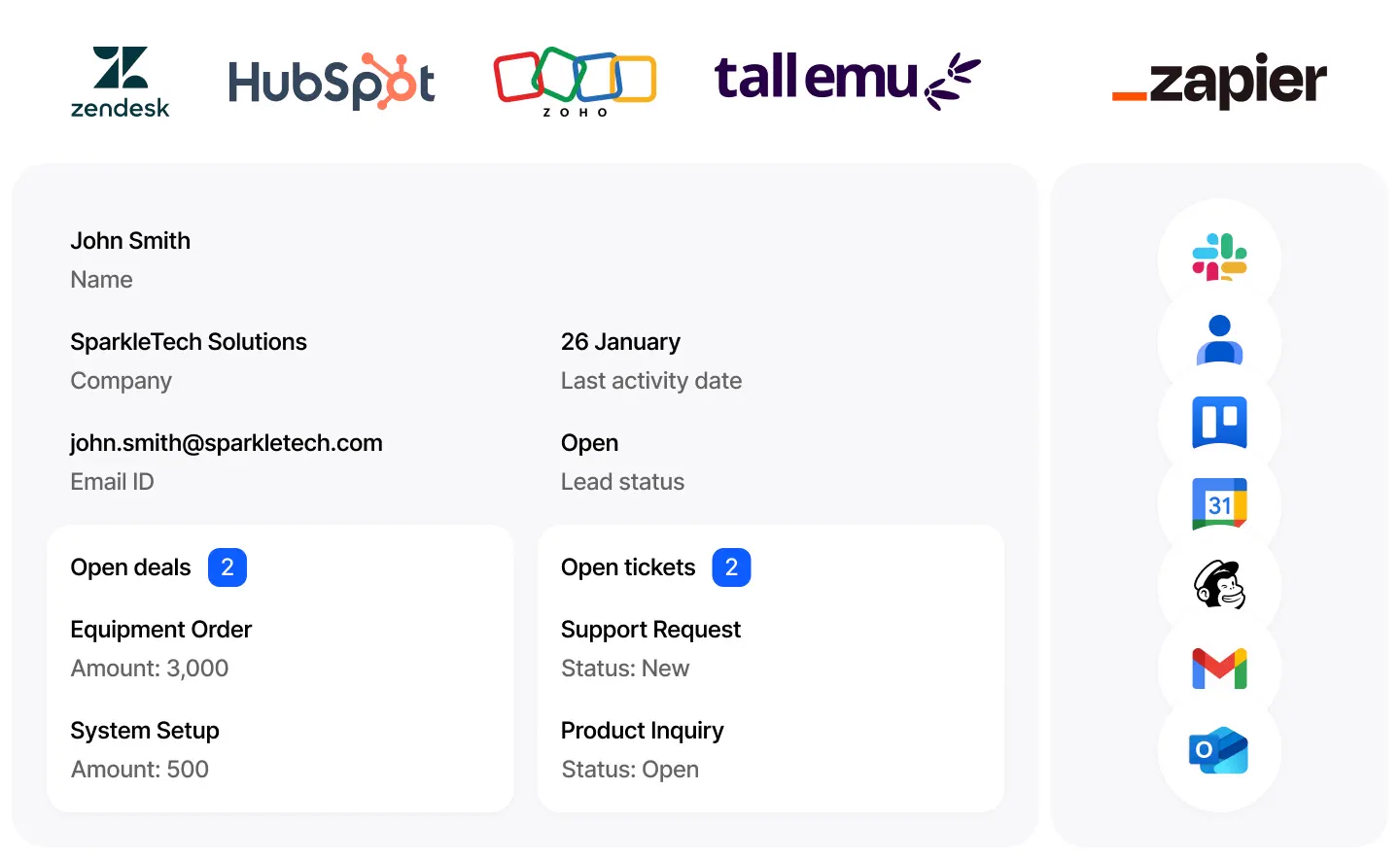
- Access caller information, deals, tickets and add call notes in real-time during conversations or within the phonebook or call history.
- Integration with Zapier is also available to display any information from third-party services during a call.
Discover API, webhooks and integrations
Discover Integrations
SMS via the internet
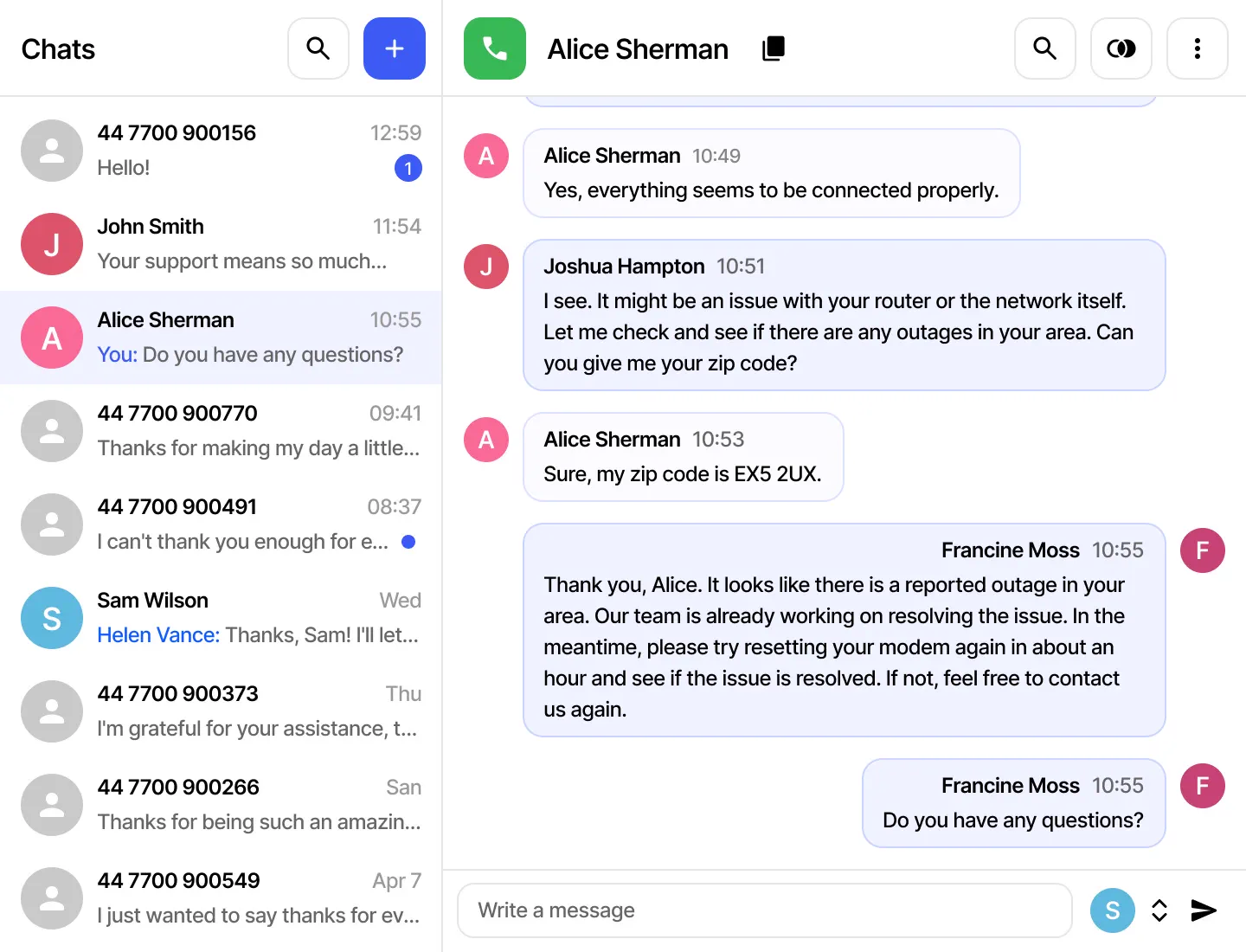
- You are not limited to a single number. You can use multiple SMS IDs to send and receive messages through a unified interface.
- The Webphone allows a team of users to chat with the same number simultaneously, maintaining a single message history.
- If you have read new messages by accident or want to remind yourself to return to a chat later, you can mark it as unread. These chats will be specially marked in the list.
Discover SMS
Call parking
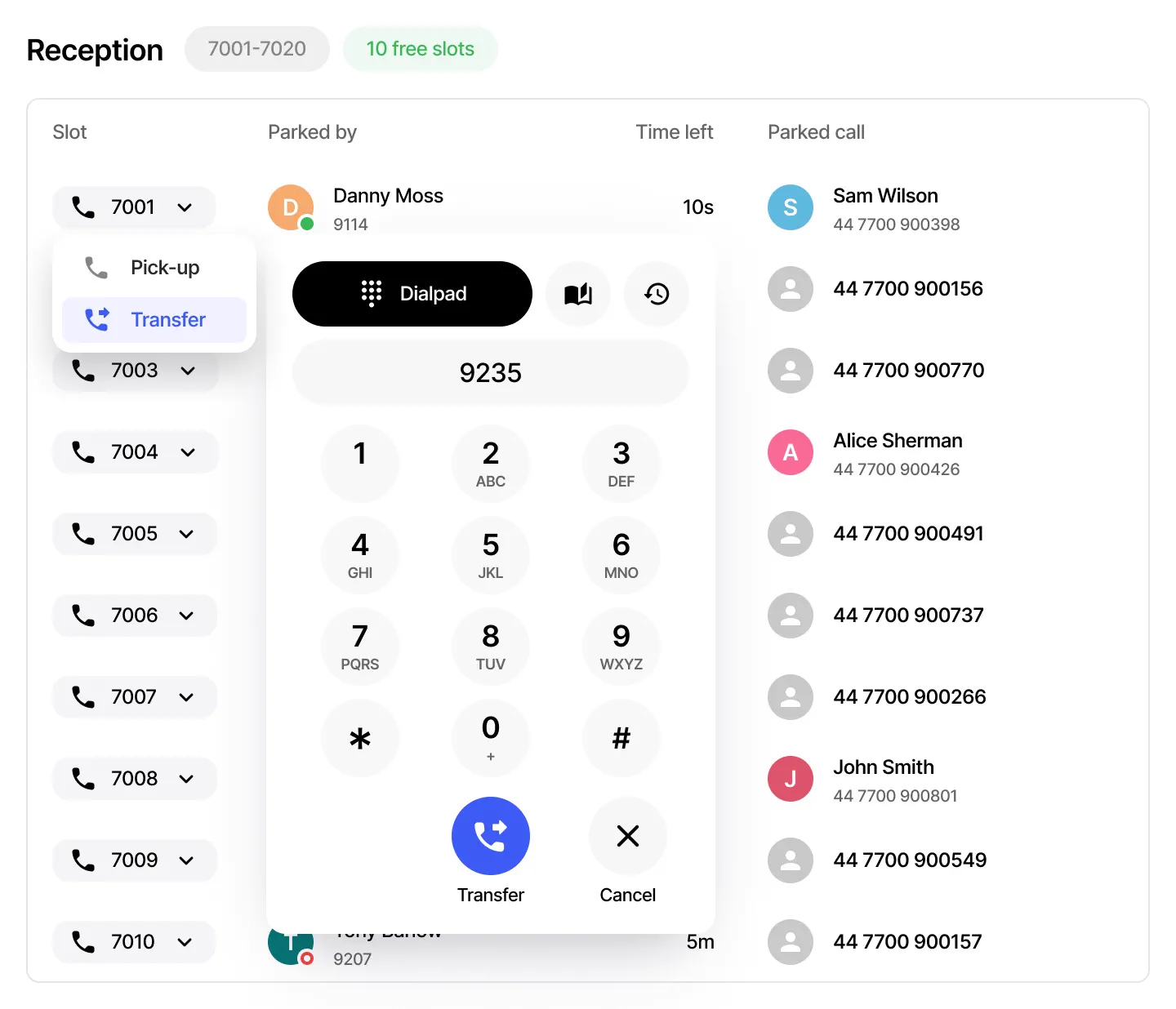
- Busy parking slots are updated in real-time.
- You can see exactly which user parked the call, how long the parked call will remain there, and whose call is parked: an unknown number or someone from your contacts.
- Quickly make a call to a busy slot or instantly transfer the call to the desired party.
- Open the call parking wallboard in a separate browser tab to conveniently monitor the situation.
Discover Call parking wallboard
Call controls
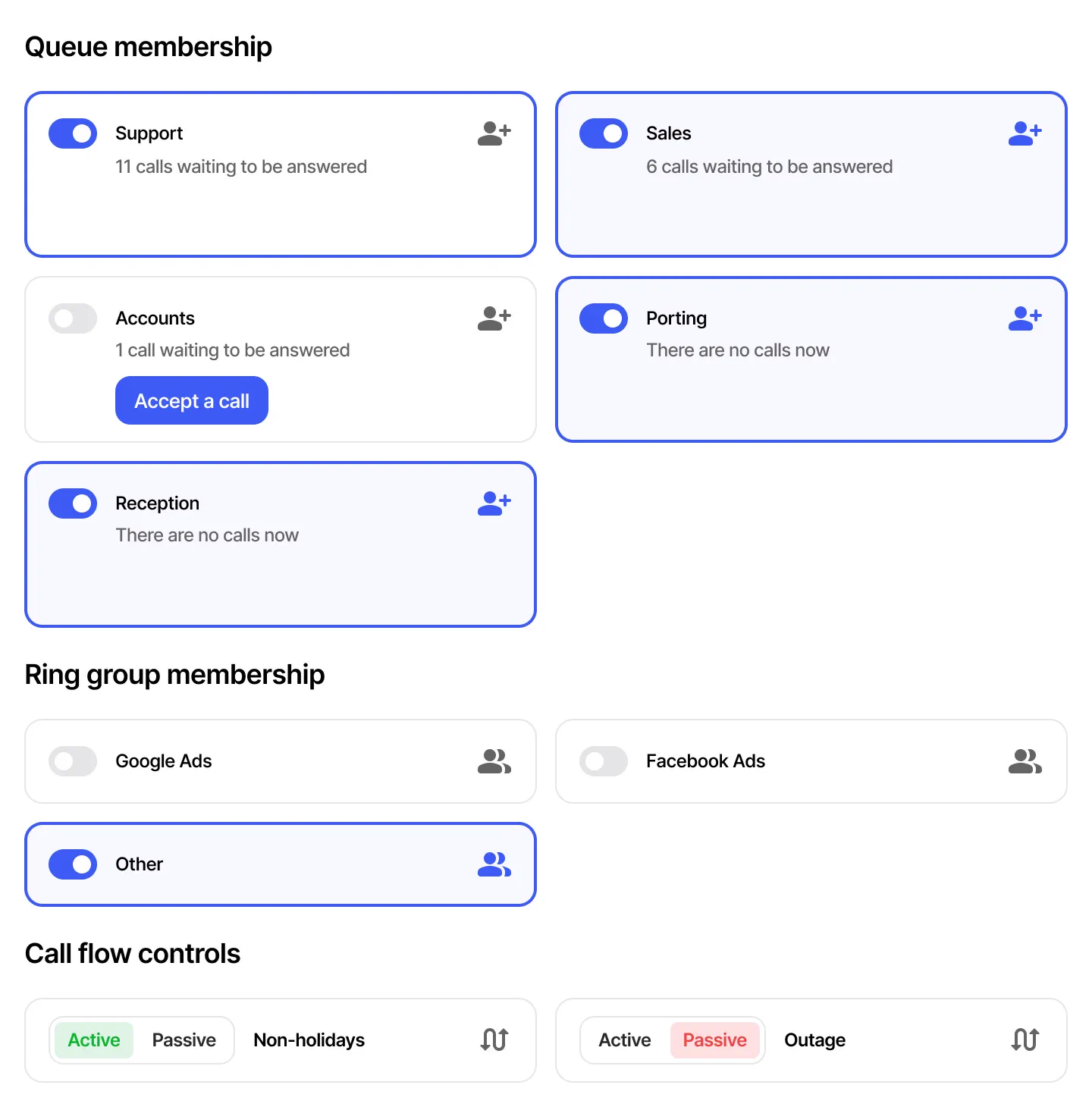
- Easily join or leave assigned 'Queue', 'Queue callback' or 'Ring group' objects.
- As a PBX administrator, you can control which users are allowed to exit the objects and which are not.
- You can see how many calls in the queue are currently waiting for an answer.
- If you have left a queue, you can still pick up a waiting call.
- You can view and manage the status of 'Call flow control' objects directly, without calling an internal number.
Voicemail
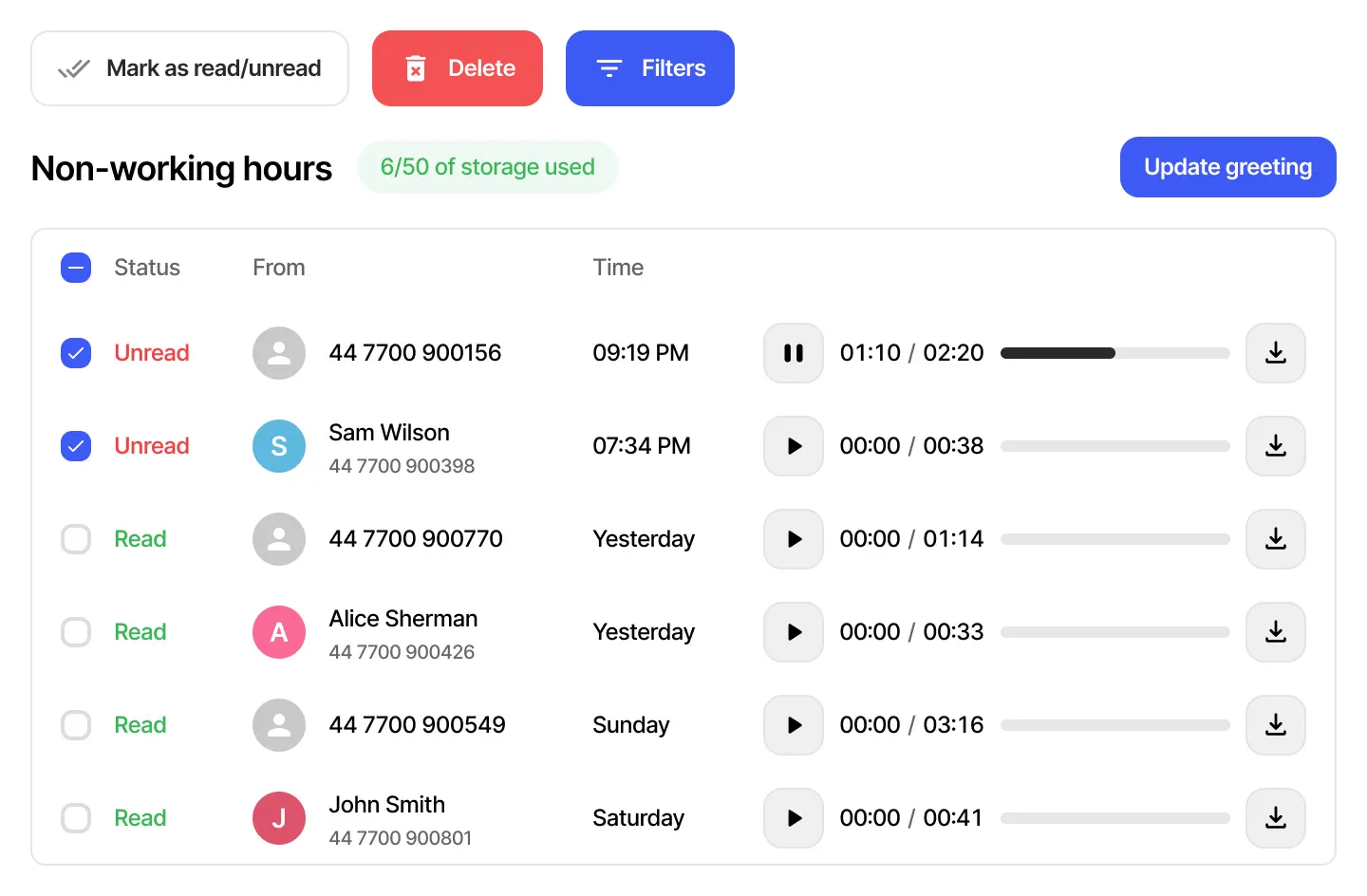
- Listen to and download messages from multiple voicemails.
- You can see which inbound number was called before the call reached voicemail.
- Update the voicemail greeting when needed.
- Quickly dial a number and view caller information from CRM.
Phonebooks
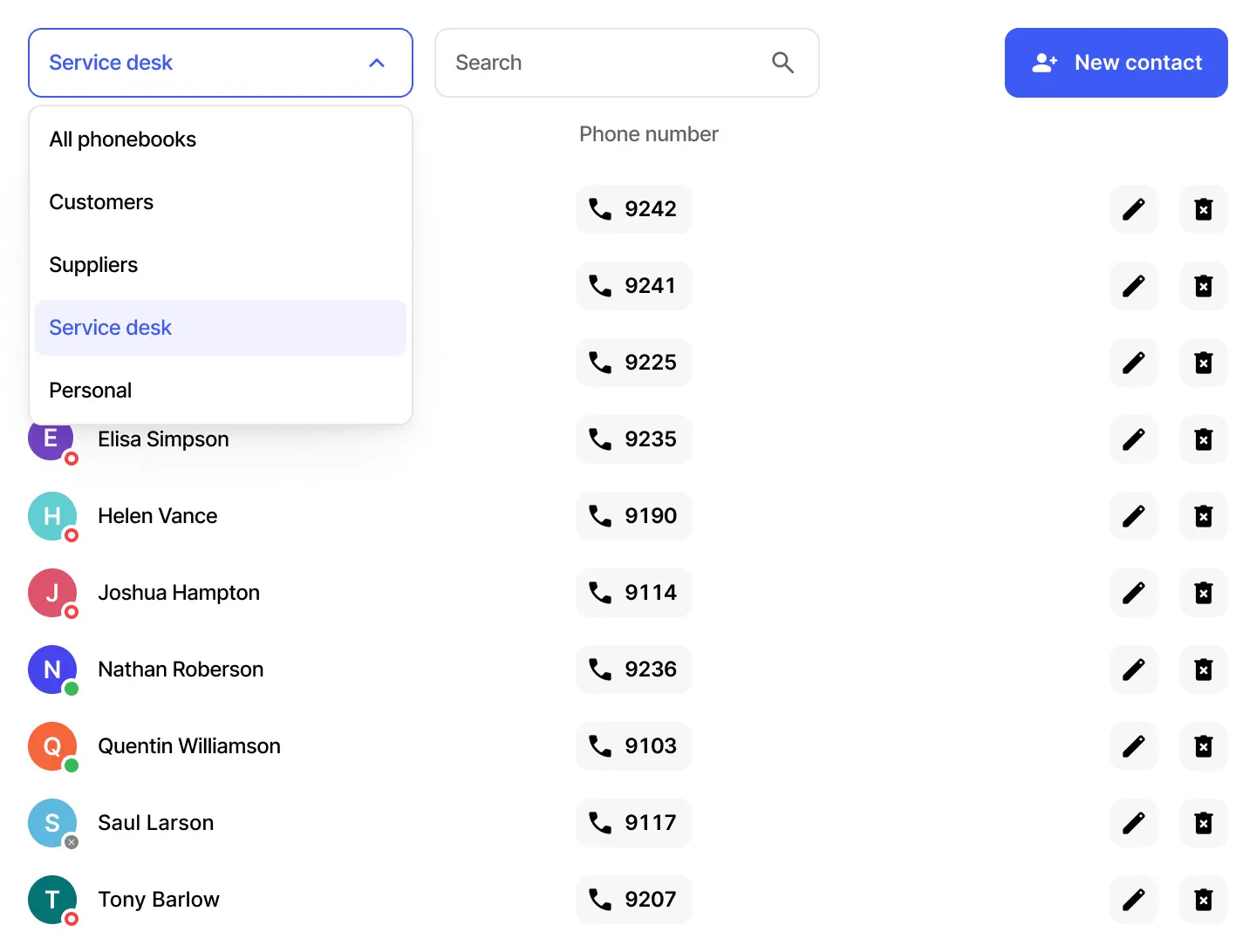
- Contacts can be divided into multiple phonebooks according to their meaning.
- The PBX administrator can specify which phonebooks cannot be edited by other users.
- The current status of other PBX users is visible: offline, online, ringing, on a call, or Do Not Disturb.
- For special contacts, you can assign a specific caller ID that will always be used when calling that contact.
Practical call history
- Various filters and a search to find the right call.
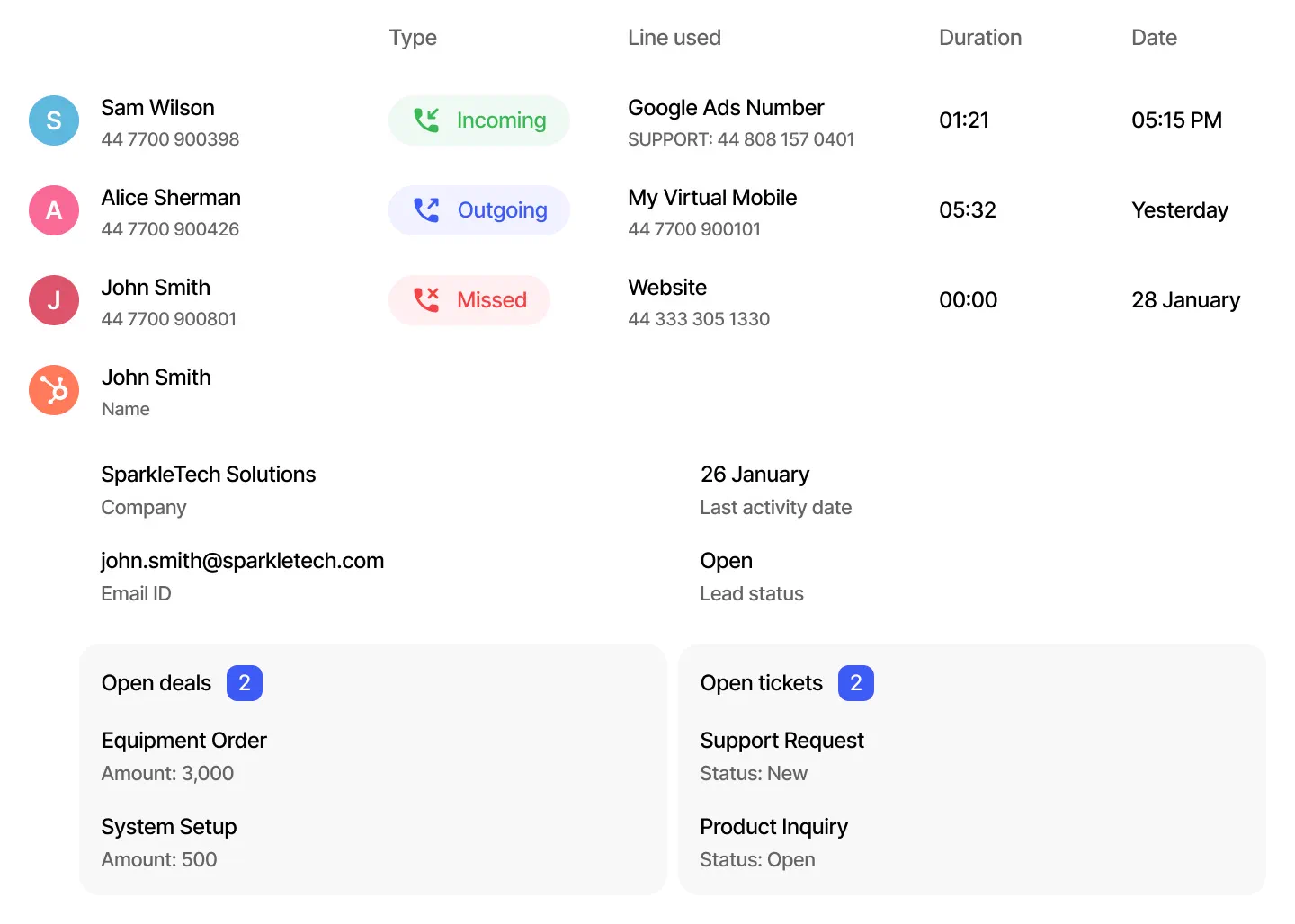
- You can see not only which number you called, what time the call was made and its duration, but also which of the inbound numbers received the incoming call, as well as the caller ID prefix.
- Quickly call back using the caller ID that received the incoming call.
- View information about the person from connected CRMs.
Listen to recorded calls
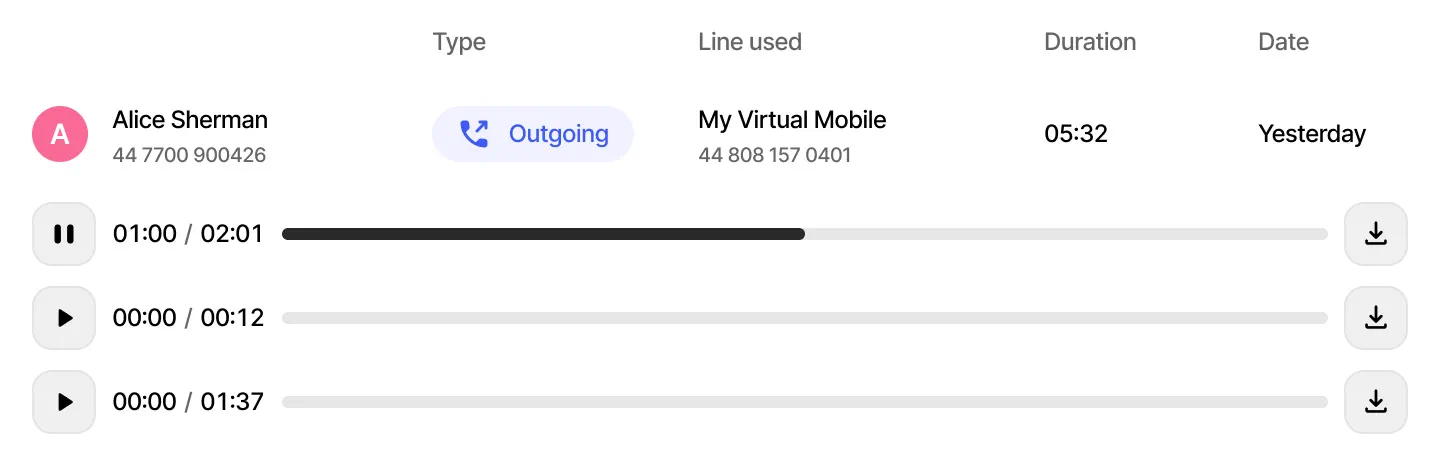
- Listen to and download call recordings from call history if you need to recall call details.
- A single call can have multiple recordings—you can stop and start recording again at any time during the call.
Discover Call recording
Useful notifications and statuses
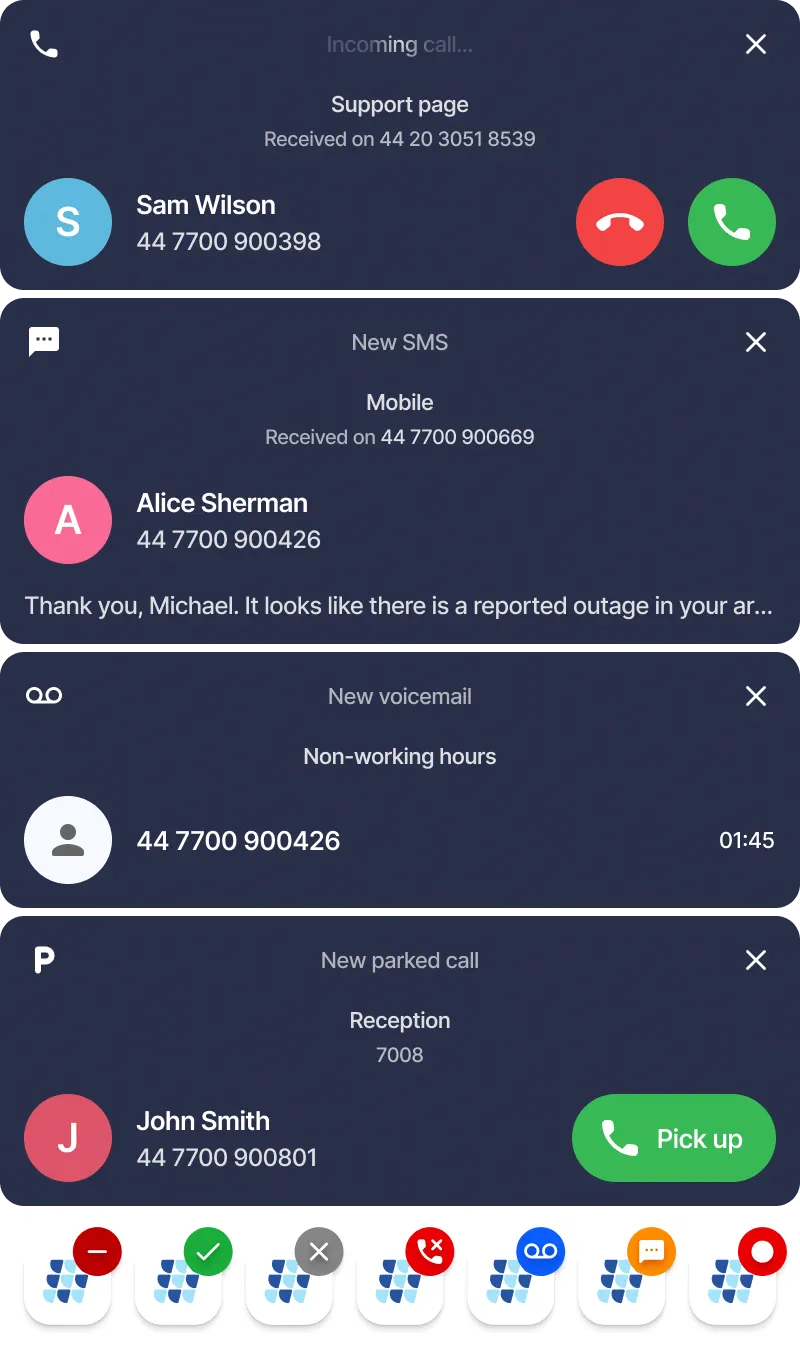
- Turn notifications on and off separately for incoming and missed calls, text messages, voicemail, and new slots in call parking.
- In native apps for Windows, macOS, and Linux, notifications include quick actions.
- Choose between displaying notifications until they are manually closed or automatically hiding them after 60 seconds.
- The application icon changes to indicate an active status when a relevant event occurs.
Manage your devices
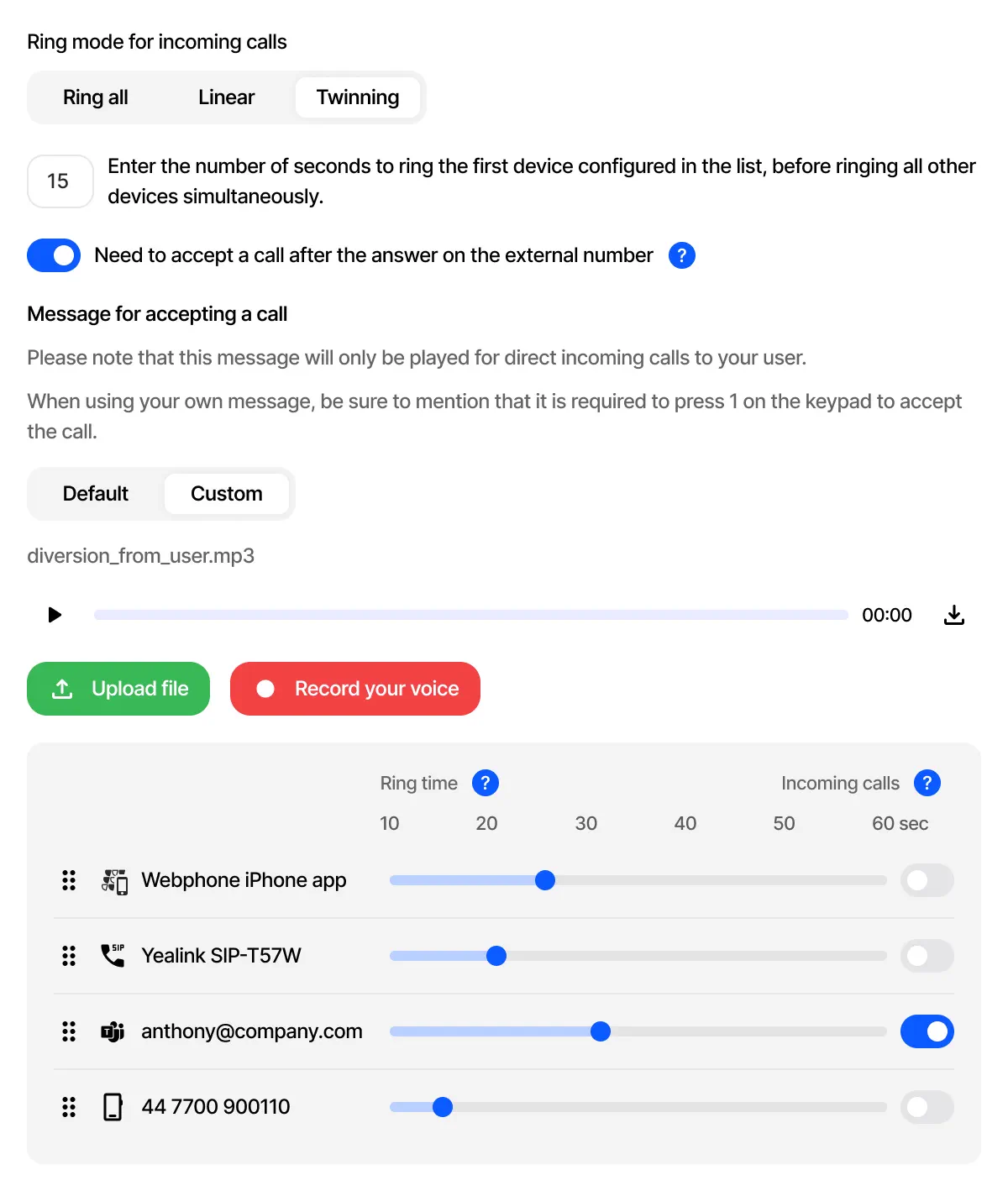
- Select one of three modes for ringing devices when a call comes in.
- Record or upload a greeting to be played when a call is forwarded to an external number and is answered.
- If you do not want to receive incoming calls on a specific device, you can exclude it.
- Add external numbers to which calls should be forwarded if you are unable to answer an incoming call on the Webphone.
Flexible customisation
- Quickly switch Do Not Disturb mode on and off.
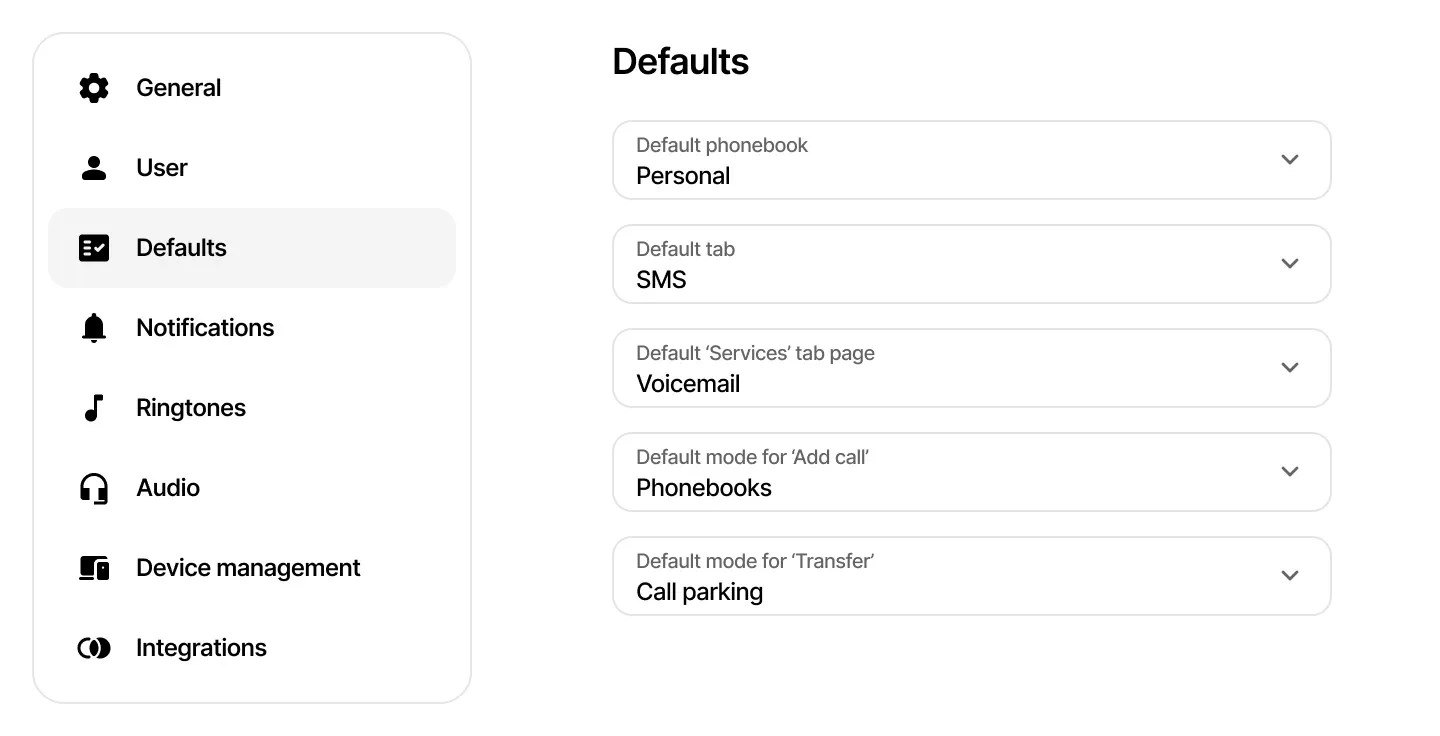
- Set phonebook, tab, and service to be opened by default.
- You can even choose the default method for making new calls or transfers: manually entering a number, using your phonebook, selecting from call history, or using call parking.
- Eleven high-quality ringtones and six interface languages to choose from.
- Set different ringtones for incoming calls in different scenarios.
- Select separate audio devices for ringing and active calls.
- Change the microphone even during a live call.
Frequently asked questions
What is a Webphone?
A Webphone is a softphone application that allows you to make and receive calls over the internet using a computer or smartphone.
It has all the features of a traditional phone and more.
Webphone
can be accessed via a mobile app, desktop app, or web browser.
What are the benefits of Webphone for businesses?
- No physical hardware. Webphone eliminates the need for desk phones, working entirely over the internet.
- Flexibility. Never miss a call again. Webphone allows you to take business calls on your mobile, ensuring you're always reachable, even when away from the office.
- Remote work. Webphone enables employees to work remotely with full access to their business phone system, maintaining productivity no matter where they are.
-
Advanced features:
- Call recording: initiate and pause call recordings to capture important information, and listen to recordings using Webphone.
- Integration with CRMs and ticketing systems: access caller information (name, email, company, contact owner, and last activity date), deals, support tickets and add call notes in real-time during conversations or within the phonebook or call history tabs. Requires an integration licence.
- Status indicators: see team members' availability in real-time to avoid phone tag, and more.
How much does a Webphone cost?
Using the Webphone for one physical device
costs one device licence.
Can I use my existing phone number with Webphone?
Yes, you can port your existing phone number to VoIPline, making the transition seamless for your contacts.
Is it secure to use the Webphone?
Yes, our Webphone ensures the confidentiality and integrity of your calls by encrypting all call data during transit.
With endpoint authentication, your communication remains confidential and shielded from eavesdropping and tampering.
Can I integrate the Webphone with my CRM?
Yes, our Webphone can integrate with popular CRM systems,
allowing you to manage customer interactions efficiently.
Requires integration licence.